


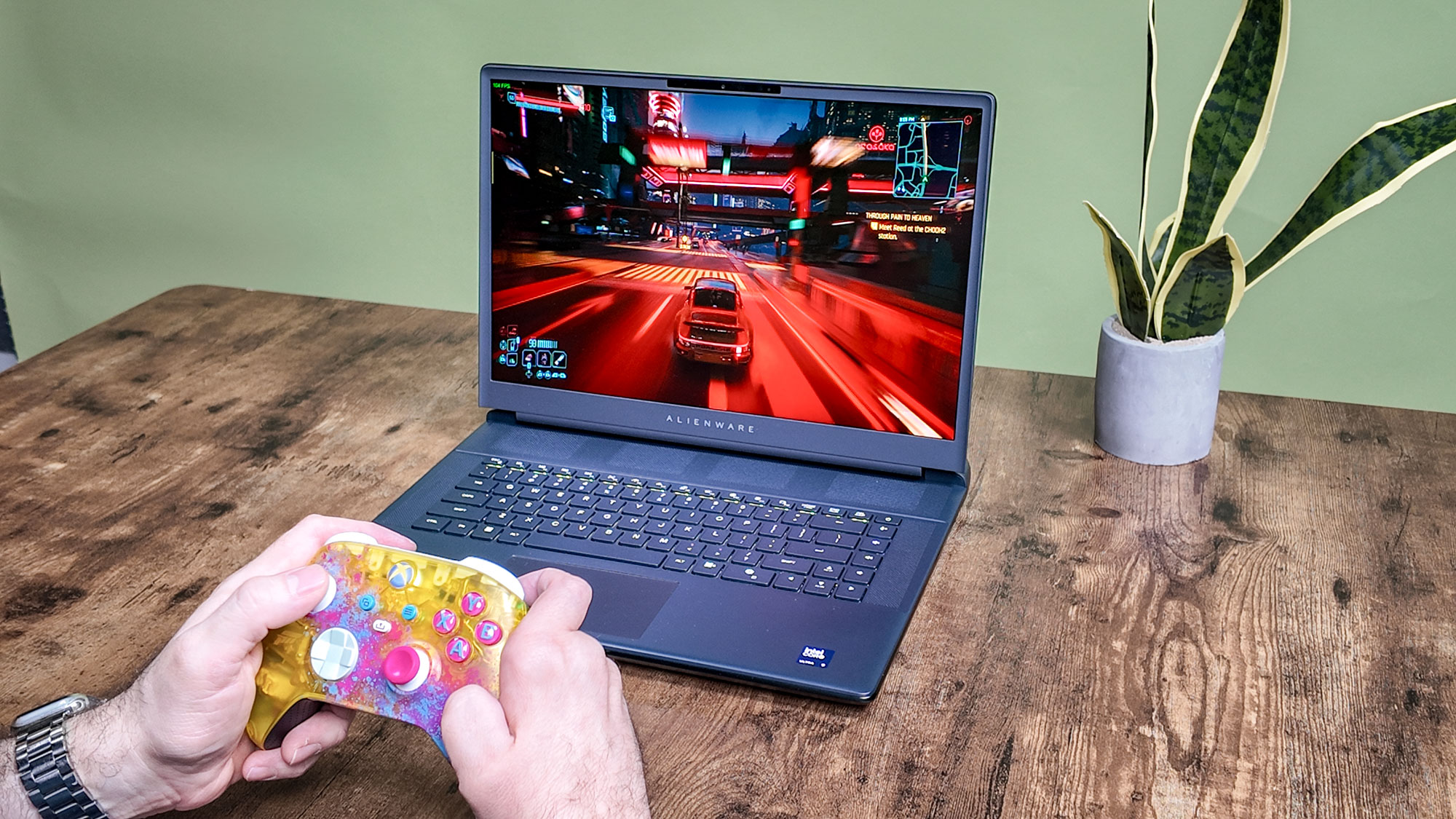
Summer is upon us, and for gamers living anywhere hot it means one thing: keeping your PC cool so it doesn’t impact performance, or worse, completely melt.
PCs are getting stronger across the board, with RTX 50-series gaming PCs and some of the best laptops equipped with the latest Intel and Snapdragon chips working hard to things cool under the hood thanks to more efficient power management.
That doesn’t stop a PC from catching on fire, though (true story!) For those that live in a sweltering environment and have limited ways to keep their computer from overheating, especially during heavy workloads or those graphically intense PC games, there are ways to keep temperatures low by changing some settings.
You may like
Keep these essential tips in mind to stop your PC from overheating.
Why does your PC overheat?
But first, how do PCs overheat in the first place? Whether it be your desktop, laptop or gaming handheld, here are some factors that can take part in the rise in temperature.
- Hot conditions: If your PC is facing direct sunlight or is in a room with a high temperature, this can naturally affect the temperature of the system.
- Intensive software: Demanding apps and games can put a computer’s CPU and GPU under pressure, which can generate a significant buildup of heat.
- Blocked vents: PCs need a way to release heat, and if exhaust vents on either a laptop (whether its on a table, bed or couch) or desktop (if it’s pushed up against a wall) are blocked, there’s no way to dissipate heat.
- Too much dust: It’s a simple one, but a buildup of dust can clog fans, block vents and even insulate vital components inside a PC, and it doesn’t do a computer any favors.
- Tab overload: If you’re a tab hoarder in browsers such as Google Chrome, this can cause a PC to use a lot system resources, taxing the CPU and casuing a rise in temperature.
- Updates required: Older apps on your PC that have yet to see an update can cause a significant impact on performance, as a PC may use more resources to handle the software.
We’ve outlined plenty of ways to give your old PC a refresh and tips to stop your gaming PC from catching fire, but you can also keep temperatures cool by changing a few essential settings in Windows.
1. Switch power plans
(Image: © Future / Tom’s Guide)
Many gaming PCs come with their own software that can easily change the power mode from a setting like “high performance” to “balanced” or “power saver,” like in Asus’ ROG Armoury Crate or Acer’s NitroSense.
While it can impact the performance of the games you play, titles (or productivity apps) that don’t require many resources won’t need a PC to be in its prime. Better yet, you can simply change power plans by heading into Windows settings.
Open the Control Panel (search for it in the Taskbar), navigate to Hardware and Sound and click on Power Options. From here, you can switch power plans. “Balanced” will further reduce power consumption, and therefore heat, but for the best cooling, you’ll want to click “Power saver.”
2. Get rid of background apps
(Image: © Future / Tom’s Guide)
There are some apps that slyly run in the background without you ever noticing, and this can put a lot of pressure on your PC if you add more active apps to the equation. That’s why you’ll want to get rid of the ones you definitely don’t need running.
Open the Settings app (“Windows key + i” or from the start menu), click Apps in the left-hand sidebar and open Installed apps.
You’ll now see all the apps on your PC. Select an app you want to stop running in the background, and click the the “three dots” icon and click “Advanced options.” Under “Background app permissions,” click on the dropdown menu and select “Never.”
3. Stop Visual Effects
(Image: © Future / Tom’s Guide)
Did you know that many Windows apps use visual effects? They can be subtle, but unnecessary if you don’t even notice them, and they can take a toll on your PC’s graphics card. Don’t need them? Turn them off.
Search for “Adjust the appearance and performance of Windows” in the taskbar. Click on the option and a Control panel window will appear. In the “Visual Effects” tab, click the “Adjust for best performance” option.
This will turn off all effects, but you can pick and choose which options you want to keep on if you still like a little style when navigating around your Windows 11 PC. After this, click “Apply.”
4. Let your GPU do more work
(Image: © Future / Tom’s Guide)
If your GPU outperforms your CPU and can manage handling its own tasks, you’ll want to turn on “Hardware-accelerated GPU scheduling.” This will effectively let your graphics card manage its own VRAM (video memory), taking a load off the PC’s CPU — making your computers internals run a tad cooler.
To do this, open Settings and then select System > Display > Graphics. Once there, click on “Advanced graphics settings.” Then, switch the toggle next to “Hardware-accelerated GPU scheduling” to on, then restart your PC.
5. Reduce maximum frame rate
(Image: © Future / Tom’s Guide)
I know, everyone wants their gaming PC to pump out the highest frame rates possible, but this can also take a lot out of a GPU, and for some titles, you’ll get a buttery smooth as it can get without any visible change at lower frame rates.
You can configure the max frame rate in many optimized PC games, but you can also do it in Nvidia and AMD’s settings.
For an Nvidia-equipped desktop or laptop, open the Nvidia Control Panel. Go to Manage “3D settings” in the left-hand sidebar, and under Global Settings, select “Max Frame Rate.” Now, you can set the maximum frame rate of all the games you play.
The same applies for an AMD-powered PC. Open the AMD Software: Adrenalin Edition app, click on the Gaming tab, then “Global Graphics.” Enable “Radeon Chill,” the select your prefered minimum and maximum FPS range.
More from Tom’s Guide
Back to Gaming Laptops
SORT BYPrice (low to high)Price (high to low)Product Name (A to Z)Product Name (Z to A)Retailer name (A to Z)Retailer name (Z to A)
