

Close Menu
TechurzTechurz
    What's Hot

    Get up to $400 off your TechCrunch Disrupt 2026 pass until tomorrow

    August 6, 2026

    Defense tech Hadrian raises $1.37B at $8B valuation

    August 6, 2026

    Omilia raises $67M to scale its customer support platform

    August 6, 2026
    X (Twitter) Pinterest YouTube LinkedIn WhatsApp
    Tech Pulse
    • Get up to $400 off your TechCrunch Disrupt 2026 pass until tomorrow
    • Defense tech Hadrian raises $1.37B at $8B valuation
    • Omilia raises $67M to scale its customer support platform
    • Get up to $400 off your TechCrunch Disrupt 2026 pass until Friday
    • Trump’s DOJ gains oversight of OpenAI’s green-card employee sponsorships
    X (Twitter) Pinterest YouTube LinkedIn WhatsApp
    TechurzTechurz
    • Home
    • Tech Pulse
    • Future Tech
    • AI Systems
    • Cyber Reality
    • Disruption Lab
    • Signals
    TechurzTechurz
    Home - Guides - 5 Nintendo Switch 2 settings I recommend changing as soon as you boot your new console up
    Guides

    5 Nintendo Switch 2 settings I recommend changing as soon as you boot your new console up

    TechurzBy TechurzJune 18, 2025Updated:May 12, 2026No Comments3 Mins Read
    Share Facebook Twitter Pinterest LinkedIn Tumblr Reddit Telegram Email
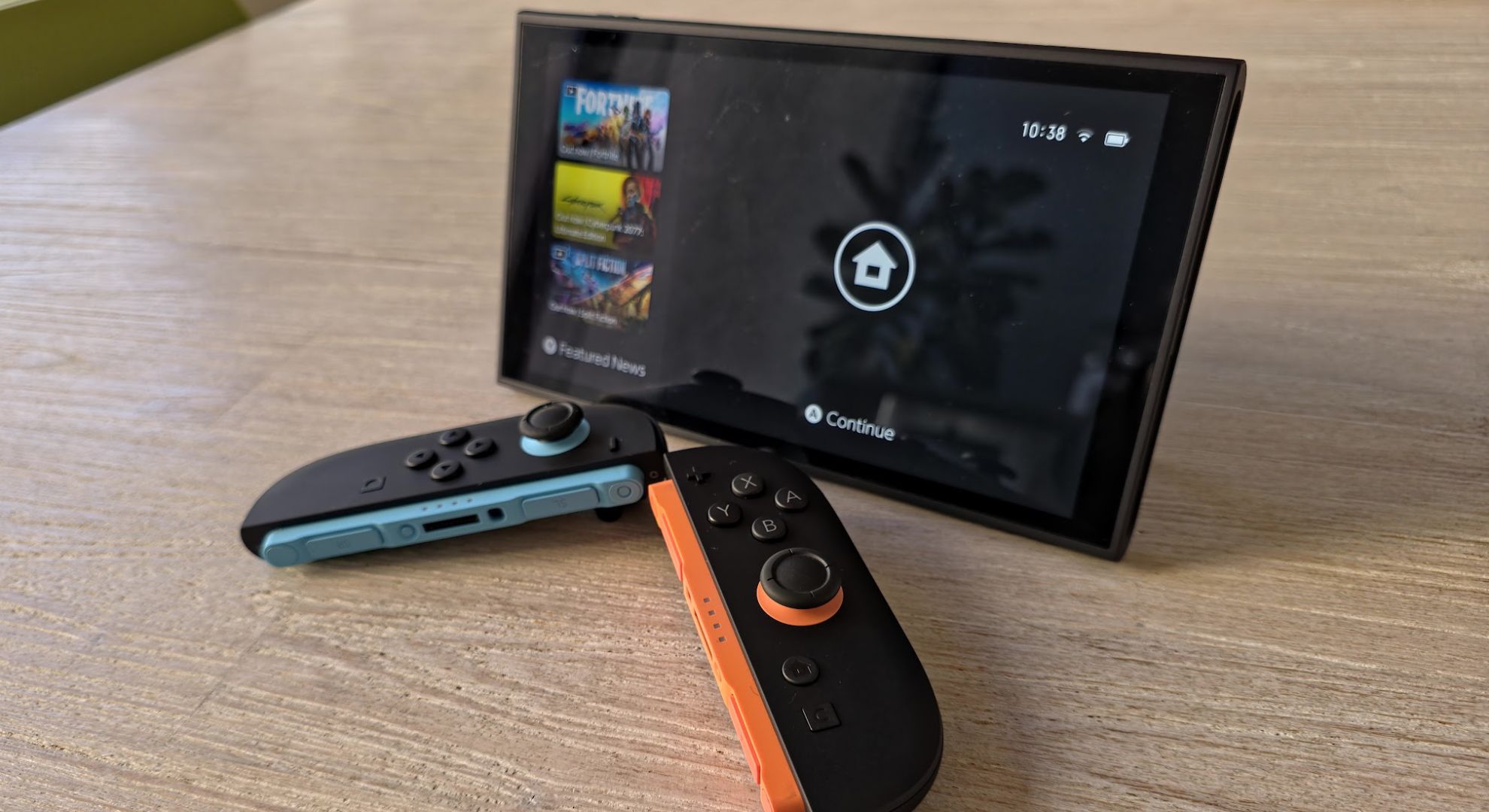
    A Nintendo Switch 2 console with the controllers removed
    Share
    Facebook Twitter LinkedIn Pinterest Email


    There’s nothing quite like the excitement of a new console; feverishly whipping off the packaging, setting up your user account, and loading up your games to settle in for an hours-long induction to your new system.

    Thrilling though the process may be, there’s a fundamental step all too often skipped: adjusting your settings. From Display and Audio settings to User, Lock, and software settings, there’s plenty to tweak in your Switch 2.

    I’ve spent a week with the console, and there are some must-change settings you should adjust before getting started; here are my recommendations.


    You may like

    Table of contents
    1 1. HDR settings
    2 2. Preserve the battery life
    3 3. TV resolution
    4 4. Change your lock settings
    5 5. Activate Dark Mode
    6 You Might Also Like…

    1. HDR settings

    (Image credit: Future / Nintendo)

    Nintendo’s latest console supports HDR, and you can easily toggle this on and off within the settings. Simply head to Settings > Display > HDR Output and make sure this setting is on by default.

    Don’t stop there, though, because there’s a second setting which allows you to choose which games it’s enabled for. Scroll down in the Display menu, and you’ll see (confusingly) another HDR Output option. Select this, and you can choose between ‘Always Enabled’, ‘Compatible Software Only’, and ‘Disabled’.

    I’d recommend switching it on for compatible games instead of the default always-on setting to make sure non-compatible games look as good as ever.

    2. Preserve the battery life

    (Image credit: Future / Nintendo)

    If you’ve suffered from battery degradation on your first-generation Nintendo Switch, you’ll be delighted to know that the Switch 2 offers a setting that caps your battery life at around 90 percent while it’s on charge, which should help your battery long-term. Simply head to Settings > System > Stop Charging Around 90%.

    Sign up for breaking news, reviews, opinion, top tech deals, and more.

    You can easily toggle this on and off any time, so if you want a full charge every now and then for a long day of gaming in handheld mode, it’s just a matter of a quick trip to the settings. Alternatively, you can simply outsource the load and try a portable battery for your Nintendo Switch 2.

    3. TV resolution

    (Image credit: Future / Nintendo)

    Gamers, rejoice – the Nintendo Switch 2 can support screen resolutions up to 4K, albeit at a 60Hz refresh rate and 60fps for most titles, but you might have different ideas for your new console. Again, head to Settings > Display > TV Resolution.

    Within the settings, you can toggle automatic resolution detection or manually set the resolution for your TV, especially handy if you would prefer the higher refresh rates available in 1440p or 1080p resolutions.

    4. Change your lock settings

    (Image credit: Future / Nintendo)

    (Image credit: Future / Nintendo)

    Depending on who else will be using your Switch, you may want to change your Lock Screen settings with the system lock menu.

    Head to Settings > User, where you can select to Skip Selection Screen if you’re the only one using the console regularly. Alertanitlvey, head to Settings > System > Console Lock. Here, you can set a PIN to keep prying eyes and grubby hands off your new console, but you can also opt to add parental controls using the dedicated Nintendo Switch Parental Controls app.

    5. Activate Dark Mode

    Sure, this one is a preference-based tip, but personally, I don’t see why you’d prefer to use the standard white theme over dark. Especially if you play mostly in handheld, it’s a great way to conserve power and give your eyes some rest.

    Once again, navigate to Settings > Themes and select between Basic White and Basic Black.

    You Might Also Like…

    boot changing Console Nintendo recommend Settings Switch
    Share. Facebook Twitter Pinterest LinkedIn Tumblr Email
    Previous Article6-month-old, solo-owned vibe coder Base44 sells to Wix for $80M cash
    Next Article AI Culture Readiness Demands New Mindsets
    Techurz
    • Website

    Related Posts

    Opinion

    How OpenAI and Google see AI changing go-to-market strategies

    November 28, 2025
    Cyber Reality

    This AirPods hack is a game-changer for frequent flyers – how to find it in your iPhone settings

    November 2, 2025
    Opinion

    Phia’s founders on how AI is changing online shopping

    October 29, 2025
    Add A Comment
    Latest Tech Pulse

    College social app Fizz expands into grocery delivery

    September 3, 20252,290

    12 Father’s Day E-Card Sites That Are Actually Good

    June 4, 202523

    SolarSquare in talks to raise up to $60M as India’s rooftop solar market draws major VC interest

    May 23, 202622
    Stay In Touch
    • YouTube
    • WhatsApp
    • Twitter
    • Pinterest
    • LinkedIn

    Techurz helps readers stay ahead of digital change with clear, practical, future focused technology intelligence written today,searched tomorrow.

    X (Twitter) Pinterest YouTube LinkedIn WhatsApp
    Company
    • About Us
    • Contact Us
    • Our Authors / Editorial Team
    • Write For Us
    • Advertise
    Policy
    • Editorial Policy
    • Privacy Policy
    • Terms and Conditions
    • Affiliate Disclosure
    • Cookie Policy
    • Disclaimer
    • DMCA
    Explore
    • AI Systems
    • Cyber Reality
    • Future Tech
    • Disruption Lab
    • Signals
    • Tech Pulse
    • Sitemap

    Join the Techurz Brief

    The future does not arrive suddenly.
    Stay ahead with fast, sharp tech signals.

    Type above and press Enter to search. Press Esc to cancel.