


Summary
- Open Bluetooth settings on your Chromebook
- Click Pair new device
- Place both AirPods in the charging case, leave the lid open, and hold down the Setup button until the LED flashes white
- AirPods Max users: press and hold the noise control button for five seconds until the status light flashes white
- Click on your AirPods name on the Chromebook
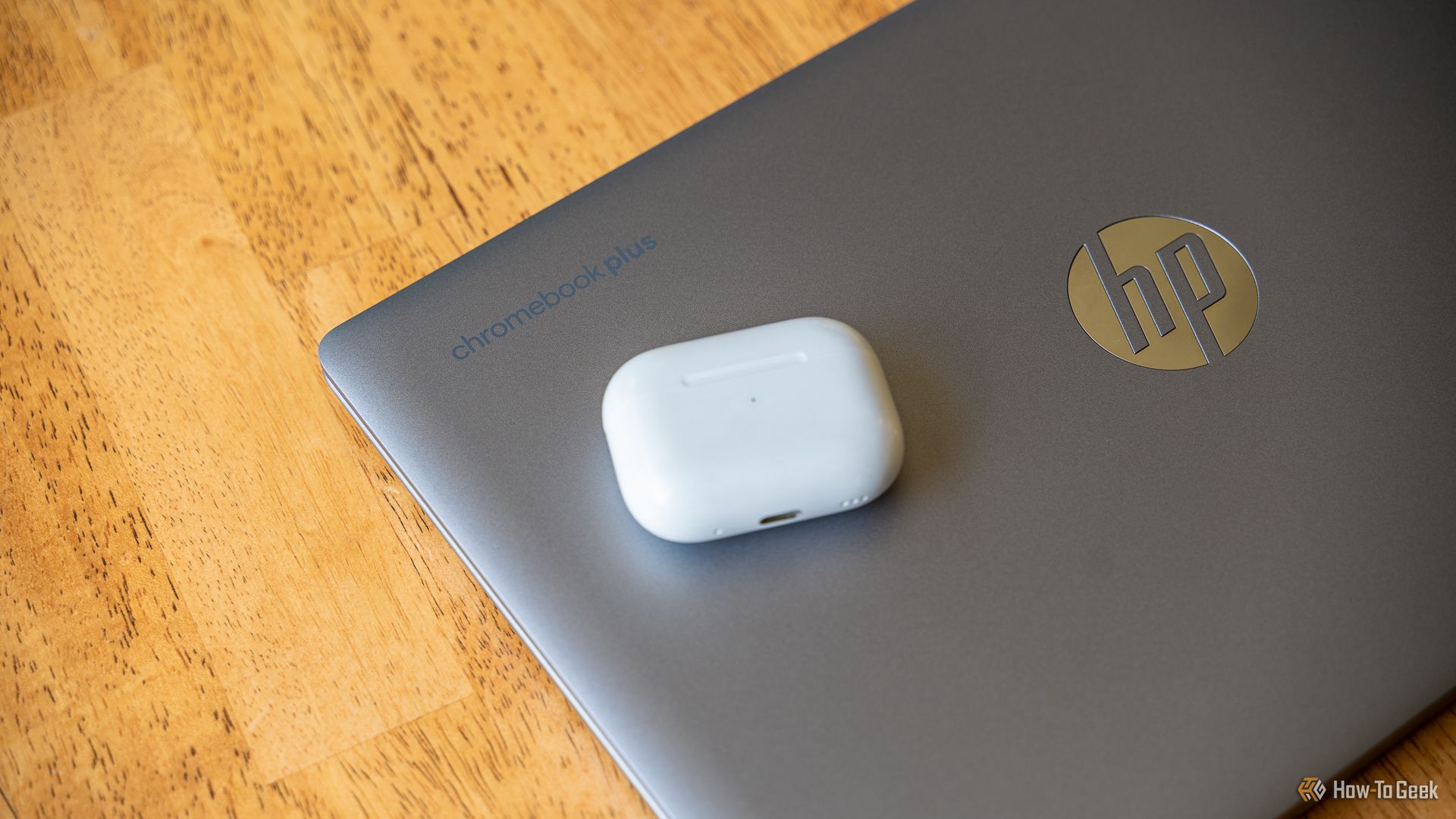
Do you want to use your AirPods with your Chromebook? It’s easier than you think to pair Apple’s iconic headphones with Google’s well-known laptops.
Connect Your AirPods to a Chromebook
To start the pairing process, launch your Chromebook’s Settings app and navigate to Bluetooth. You can quickly jump there by clicking the search button on your Chromebook’s keyboard and typing in Bluetooth, or by clicking in the dock in the lower right-hand corner, selecting Bluetooth, then Add Device.
Once you have Bluetooth settings open on your Chromebook, click on Pair new device to begin searching for Bluetooth devices that are in pairing mode.
Now that your Chromebook is searching for a new device, make sure your AirPods or AirPods Pro are discoverable. To do this, place both AirPods in the charging case, leave the lid open, and hold down the Setup button on the back. If you have AirPods Max, then press and hold the noise control button on the headphones for five seconds to put them into pairing mode.
Patrick Campanale / How-To Geek
The light on your AirPods case will flash white, indicating that the AirPods are ready to pair. For AirPods Max, the status light will flash white when in pairing mode.
Patrick Campanale / How-To Geek
Back on the Chromebook, you should now see your AirPods pop up in the pairing box. Select them, and they should be paired within a few seconds.
Your AirPods are now ready to use with your Chromebook! They will auto-connect if your Chromebook was the last device they were connected to.
If you connect them to your iPhone later, and wait to connect them back to the Chromebook, simply select your AirPods from the paired Bluetooth devices menu to re-establish that connection again. You do not have to go through the whole pairing process a second time.
Disconnect Your AirPods From a Chromebook
Disconnecting AirPods from a Chromebook is easier than connecting them. On the Chromebook, go back to Bluetooth settings, click on the little arrow to the right of your paired AirPods.
On the page that pops up, click Forget.
This will remove your AirPods from the Chromebook, and you’ll have to go through the pairing process again if you want to re-pair them in the future.
Troubleshooting Tips
If your AirPods aren’t showing up on your Chromebook even though they’re in pairing mode, refresh the Bluetooth devices available to the Chromebook by toggling Bluetooth off and then back on, then hitting the Pair new device button again. If that doesn’t work, make sure your AirPods are close to your Chromebook (like within a few feet), and try pairing again. You can also try closing the AirPods lid to take them out of pairing mode, then open the lid back up and hold the setup button again to re-enable pairing mode.
If your AirPods are automatically connecting to another nearby device, it might be beneficial to disable Bluetooth temporarily on that device while you pair them to your Chromebook. You won’t have to do that every time, but for the initial pair, that can sometimes help if they’re not showing up on your Chromebook.
Your Chromebook doesn’t support the more advanced features of some AirPods models, like the latest AirPods Pro 2. Features like double-tap gestures or auto-ear detection won’t function. Instead, you’ll need to manually pause music or movies on the Chromebook.
When all else fails, you can try factory resetting your AirPods. You do this by holding the Setup button until the LED flashes amber. This will take longer than the flashing white I mentioned above for pairing, so just keep holding the button until the light turns amber.
Other Tips and Tricks
Did you know that the standard button functionality on AirPods will still work on Chromebook? Things like volume control, play, and pause will work like you’d expect them to.
In addition to that, each AirPod can connect independently to your Chromebook. This means you can use your left or right AirPods individually, or both at the same time, depending on what you’re needing to do.
Noise cancellation is also still available for both AirPods Pro and AirPods Max, meaning your AirPods can be a great companion to working on your Chromebook in a coffee shop.
Your mic will still work for calls you take through the Chromebook, though the mic might sound a bit worse than it does on your iPhone.
Did you know that your AirPods work with any Bluetooth-enabled device, and not just Mac, iPhone, or iPad? You can pair them with Android devices, Chromebooks (like in this article), or even Windows computers.
