


The Download
- You can make your mic louder by adjusting settings in Windows 10 sound options.
- Checking your microphone properties can help you find and increase your mic volume.
This article explains how to increase your microphone volume on a Windows 10 computer. You can adjust the settings using either the Settings app or the Control Panel.
Change the Microphone Volume in Settings
The Settings app, which you can open from the Start menu, allows you to adjust your microphone volume.
-
Open the Start menu and select Settings.
-
Click on System.
-
Choose Sound from the menu on the left.
-
Under the Input section, select your microphone from the drop-down list if you have more than one.
-
Click on Device properties. If you’re using a headset with a mic, it’s labeled as Device properties and test microphone.
To access this window quickly later, right-click the sound icon in the taskbar and choose Open Sound settings or Sounds.
-
Use the Volume sslider to increase the microphone volume.
To test your microphone volume level, click Start test or Test, and then speak into the mic. You’ll see the volume level detected by your computer.
Change the Microphone Volume in Control Panel
If you prefer the Control Panel for adjusting microphone settings, follow these steps:
-
Open Control Panel as you usually would and go to Hardware and Sound.
-
Click Sound.
-
Switch to the Recording tab.
-
Right-click on your Microphone, then select Properties.
-
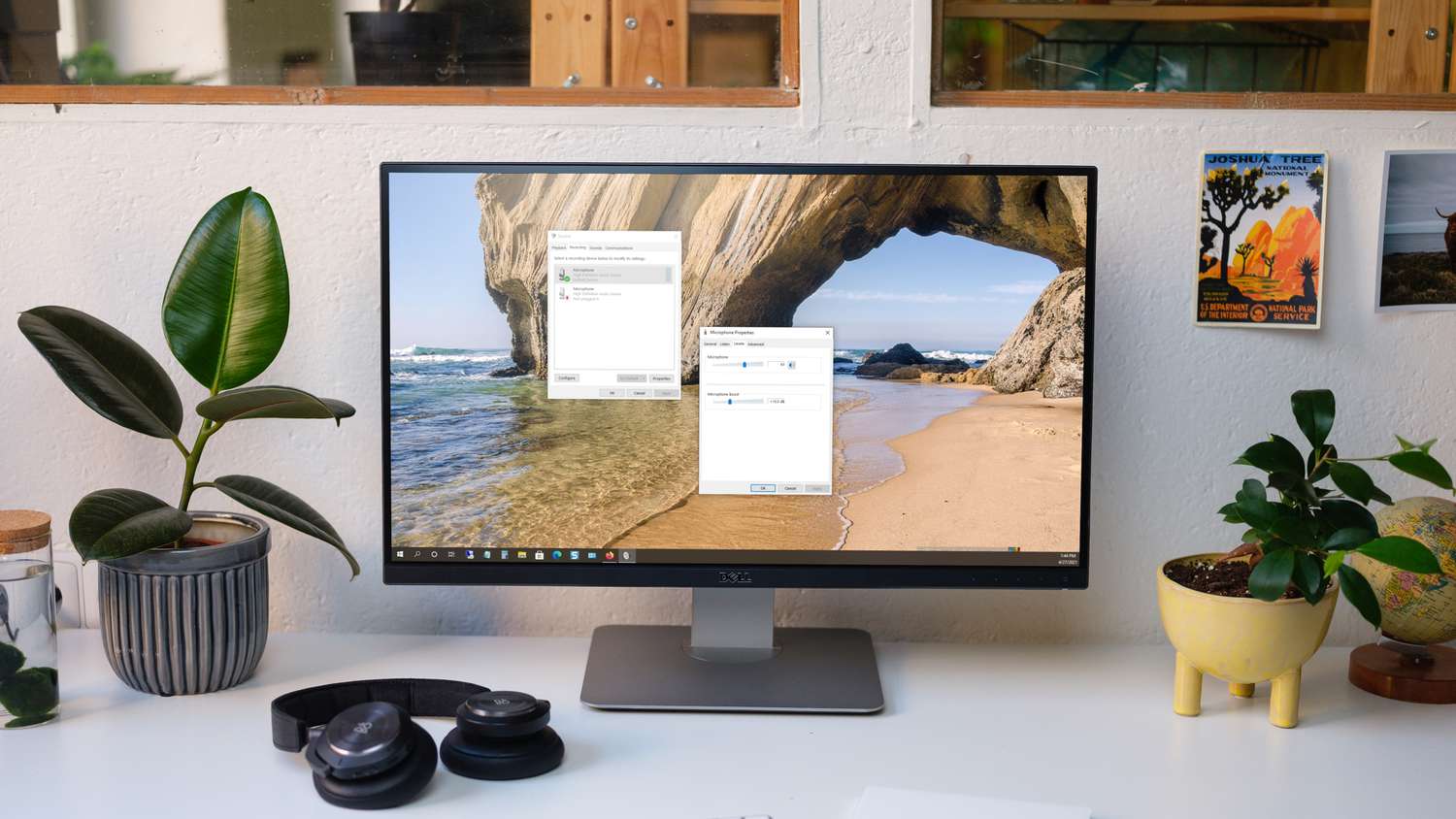
Navigate to the Levels tab, adjust the volume using the slider, or type a higher number to increase it.
-
Press OK to exit each pop-up window and apply the changes.
If your microphone doesn’t work after increasing the volume, check out these troubleshooting steps to fix your microphone on Windows 10.
FAQ
-
How do I change my microphone volume on Skype in Windows 10?
In the Skype desktop app, go to your profile and then select Settings > Audio & Video > Microphone. Turn off the Automatically adjust microphone settings to manually control your microphone volume.
-
How do you boost microphone levels in Windows 10?
Navigate to Start > Settings > System > Sound. Under Input, ensure your mic is selected and click on Device properties. Select Additional device properties, go to the Levels tab, adjust Microphone Boost, then click OK.
Thanks for letting us know!
Subscribe
Tell us why!
Other
Not enough details
Hard to understand
