


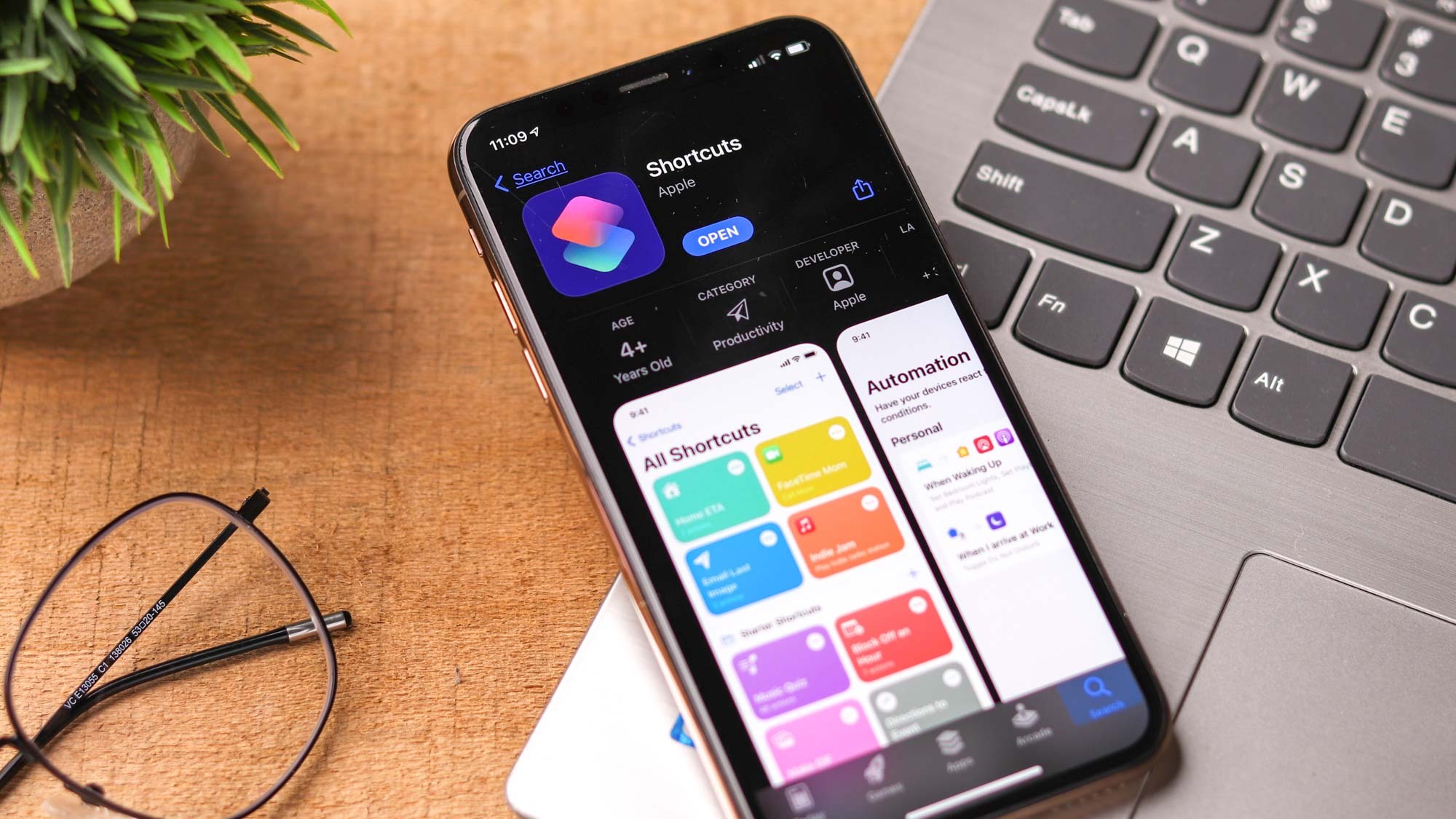
The Shortcuts app is easily overlooked. While it’s capable of creating scripts to automate tasks and processes, it can initially seem overwhelmingly complex — enough that many may have written it off as an app just for pro users.
But in reality, it’s relatively straightforward, and more importantly, it’s incredibly useful. In fact, it’s now more useful than ever. If you’ve installed iOS 18.4 or later, you can gain single-tap control over certain Apple app settings without needing to open the apps themselves.
These new actions are available for the Books, Calendar, Freeform, News, Reminders, Safari, Voice Memos, and Weather apps. Hopefully, this list will expand to include more — including third-party apps.
You may like
For now, you can create a shortcut for a frequently used setting (such as turning on Optimize Storage in News or enabling Time to Leave in Calendar), place it on your Home Screen, and tap it to make an instant change.
Let’s see how it’s done.
1. Set up a shortcut
(Image: © Future)
To start the process of creating a settings shortcut, you need to launch the Shortcuts app and tap the + icon in the top-right corner.
2. Find an app
(Image: © Future)
Next, you have to tell Shortcuts which app you want to work with. There are two ways of doing this.
You can simply browse the list of apps — just tap an app you want to use bearing in mind that some apps won’t let you set up a settings shortcut.
Alternatively, type settings in the search box. This will list apps that definitely have associated settings shortcuts and it’s generally the quickest approach.
3. Select Change Settings
(Image: © Future)
In either case, you need to tap an option called Change [app name] Settings related to the app you want to work with.
4. Tap a blue option
(Image: © Future)
You will see a customizable shortcut action. For example, if you selected Change Safari Settings then you’ll see the action Turn AutoFill Use Contact Info Off. You will see text highlighted in blue. In our example, both Turn, AutoFill Use Contact Info and Off are highlighted in this way.
You can tap any blue highlighted text and select an option from the dropdown menu. When you’re finished, tap Done.
Let’s give an example.
With Safari, you can tap Turn and change it to Toggle. You can select AutoFill Use Contact Info and choose from a large number of options from Block Pop-Ups and Close Tabs to Open Links and Search Engine.
The action will change depending on the options you choose. For example, you could select Search Engine and the action will become Set Search Engine to Search Engine. If you then tap the second instance of Search Engine, you could choose from the likes of Google, Yahoo!, Bing, DuckDuckGo and Ecosia.
The resulting shortcut would allow you to run an action that instantly changes the default search engine. It’s worth playing around.
5. Run a shortcut
(Image: © Future)
You can run a shortcut from the Shortcuts app. You just need to tap the Shortcuts tab at the bottom of the screen and then select the shortcut you’d like to run from those that are listed.
Bonus tip! Add to the homescreen
(Image: © Future)
A shortcut can also be added to the iPhone’s Home Screen and run with a simple tap. Doing so means you won’t even need to launch an app to use it.
To do this, find a shortcut in the Shortcuts app and long-press its title. Tap Details and select Add to Home Screen.
And there you go. You now know how to create custom iPhone shortcuts to control settings without opening an app
You may also find it handy to learn 7 iOS Shortcuts that will transform how you use your iPhone and, should your iPhone come into contact with water, check out how to order Siri to eject water from your iPhone.
Shortcuts can also be assigned to the Action button, so check out how to set it up.
Today’s best Apple iPhone 15 Pro and Apple iPhone 15 Pro Max deals
