


The Download
- To cancel an iPhone update that’s still downloading, switch on Airplane Mode to cut off the connection.
- To prevent the installation if it’s already downloaded, delete the update file in Settings > General > iPhone Storage.
- To stop automatic updates, edit the option in Settings > General > Software Update > Automatic Updates.
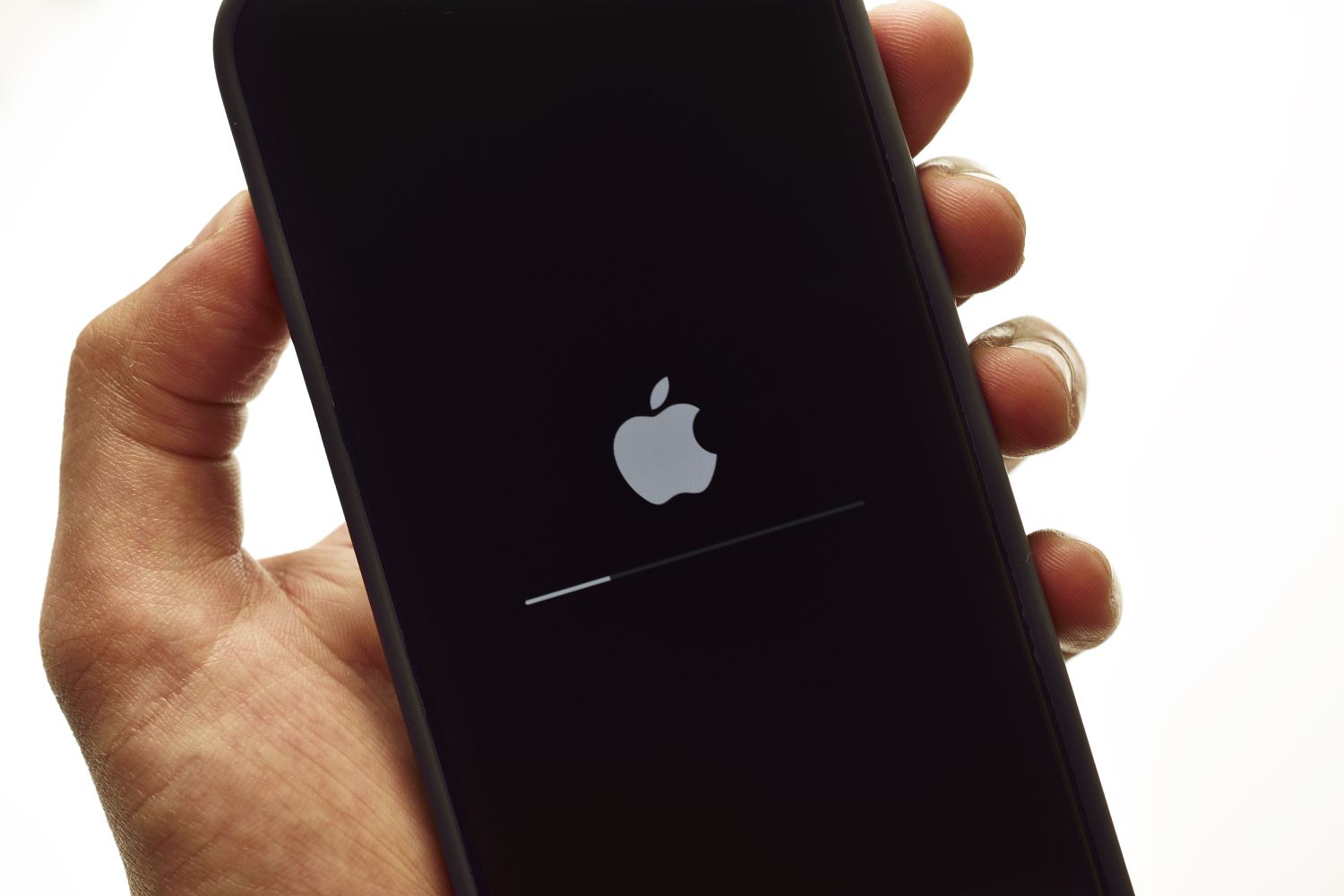
This article explains how to cancel an iPhone update before it finishes. While there’s no button to make this easy, you can do it if you know the right tricks.
Can You Cancel an iPhone Update While It’s Downloading?
There are two parts of the iOS update process where you can halt what’s happening: during the download and during the installation. That’s because the over-the-air iOS updates happen in two steps: the iPhone first downloads the update file before installing it.
There’s no button to stop a download in progress, so you must temporarily disconnect your iPhone from the internet. Follow these steps to stop the download of the update file itself, even if the download is partially complete:
-
Open Control Center (by swiping down from the top right corner on the iPhone X and newer, or swiping up from the bottom of the screen on earlier models).
-
Tap the Airplane Mode icon so that it lights up.
-
Close Control Center by swiping up from the bottom of the screen or tapping an empty area of the screen.
-
Confirm that you’ve cancelled the iPhone update by going to Settings > General > Software Update. If the Download button is lit up, the download has stopped.
You’ll probably want to change your settings for automatic downloading and installation of iOS updates before getting out of Airplane Mode. Check out the last section of this article for instructions.
How Do I Cancel an iPhone Update in Progress?
If the update file has been partially or fully downloaded to your iPhone, you can still prevent it from being installed. You can even do this if the update has started but hasn’t yet finished.
If your iOS update is in progress and you want to stop it, here’s what to do:
-
Go to Settings > General.
-
Tap iPhone Storage.
-
Find the iOS update file and tap it.
-
Tap Delete Update.
-
In the confirmation pop-up, tap Delete Update again.
If you haven’t already turned off Airplane Mode, do it here so you can start using the internet on your phone again.
How to Control Automatic iOS Update Downloads and Installs
You can set your iPhone to download operating system updates and install them automatically. This feature makes it easy to keep your phone up to date, but you may prefer to have more control over when those downloads and installs happen.
Follow these steps to choose your iOS update settings:
-
Tap Settings.
-
Tap General.
-
Tap Software Update.
-
Tap Automatic Updates.
-
On this screen, your options are:
- Download iOS Updates: This controls whether updates are downloaded but not installed (that’s the next setting). Move the slider to off/white to prevent automatic downloads. It will hide the second option. However, you can keep this slider set to on/green to download files, but still control installation with the next option.
- Install iOS Updates: This controls whether updates that have already been downloaded are installed automatically or manually. To manually install the updates, move this slider to off/white.
Depending on the iOS version that’s currently installed, these options might be called Automatically Install and Automatically Download.
FAQ
-
How do I update my iPhone?
To update your iPhone’s iOS wirelessly, launch the Settings app and tap General > Software Update. Your phone will check for and display any available iOS updates. If one is available, tap Update Now or Download and Install.
-
Why won’t my iPhone update?
If your iPhone iOS won’t update, it may be because there isn’t an available iOS update for you to install. If you see an available update that won’t install, or if installation freezes, you may not have enough storage for the update. Try using your computer to update your iPhone. It could also be a problem with your internet connection that hinders your update.
-
How do I update apps on an iPhone?
To keep iPhone apps up to date, open the App Store app, tap your profile picture, and view any available app updates. Tap Update to install an update, or tap Update All to install all available updates. To have your apps automatically update, go to Settings > App Store and toggle on Automatic Downloads.
Thanks for letting us know!
Subscribe
Tell us why!
Other
Not enough details
Hard to understand
