

Close Menu
TechurzTechurz
    What's Hot

    Trump’s DOJ gains oversight of OpenAI’s green-card employee sponsorships

    August 5, 2026

    Klaviyo acquires Elias Torres’ Agency in full-circle reunion for tech founders

    August 5, 2026

    AI makes weather prediction better. Can WindBorne make it lucrative?

    August 5, 2026
    X (Twitter) Pinterest YouTube LinkedIn WhatsApp
    Tech Pulse
    • Trump’s DOJ gains oversight of OpenAI’s green-card employee sponsorships
    • Klaviyo acquires Elias Torres’ Agency in full-circle reunion for tech founders
    • AI makes weather prediction better. Can WindBorne make it lucrative?
    • Hark previews its browser use agent for completing tasks
    • Meet the eight startups pitching at Startup Battlefield Australia
    X (Twitter) Pinterest YouTube LinkedIn WhatsApp
    TechurzTechurz
    • Home
    • Tech Pulse
    • Future Tech
    • AI Systems
    • Cyber Reality
    • Disruption Lab
    • Signals
    TechurzTechurz
    Home - Apps - iOS 26 has a new Camera app: Here’s what’s new and how to find everything that’s moved
    Apps

    iOS 26 has a new Camera app: Here’s what’s new and how to find everything that’s moved

    TechurzBy TechurzJuly 29, 2025Updated:May 11, 2026No Comments3 Mins Read
    Share Facebook Twitter Pinterest LinkedIn Tumblr Reddit Telegram Email
    iOS 26 camera app
    Share
    Facebook Twitter LinkedIn Pinterest Email


    When you first launch the Camera app after updating to iOS 26, you’ll see a splash screen telling you that it’s a new design. If you’re like us, you’ll just tap “Continue” to get it out of your way—you have selfies to take!

    Don’t panic at the dramatically different look. For the most part, the new Camera app works like the old one and doesn’t remove any major features. In fact, it adds some settings selections that you used to have to jump into the Settings app for, which is a big time-saver.

    Here’s how the new Camera app works.

    Table of contents
    1 Swipe for camera modes
    2 Quick-select features in the upper-right
    3 Show all features for your current mode
    4 Change capture settings in the upper-left
    5 Lens cleaning hints
    6 AirPods as a camera remote

    Swipe for camera modes

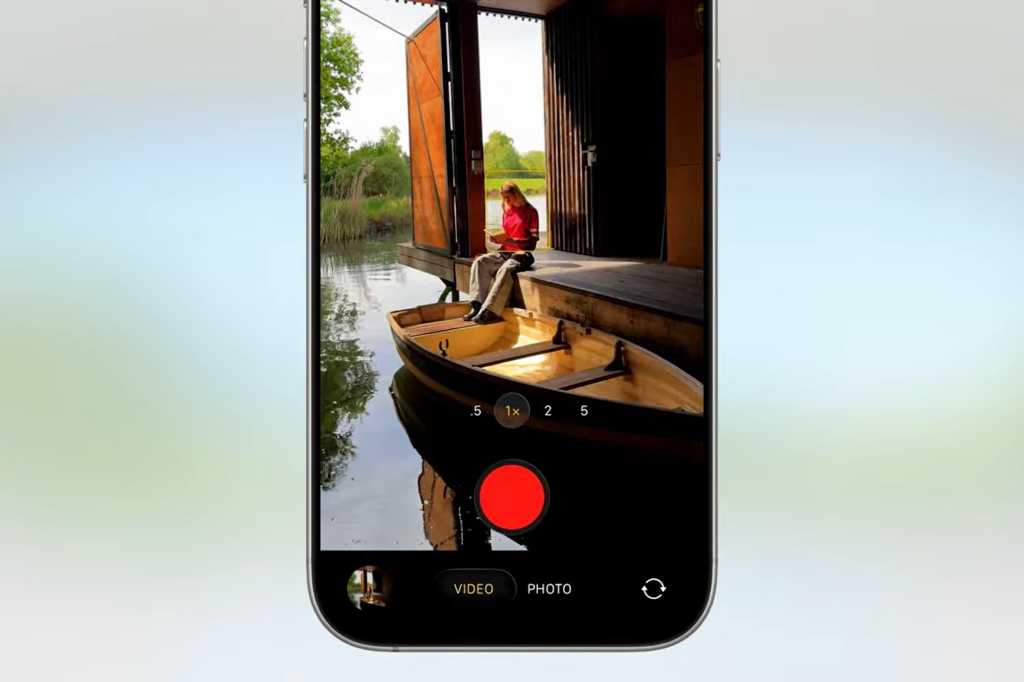
    The camera modes used to be listed just above the shutter button. Now they’re below it. You’ll only see Photo and Video at first, but just tap and drag left and right, the same as you did with iOS 18. All the modes you’re used to are still there.

    Foundry

    Quick-select features in the upper-right

    In the upper right, you’ll see little icons for common features, like flash or night mode, depending on the circumstances. Tapping those toggles the feature.

    Foundry

    Show all features for your current mode

    Tapping the little six-dot icon next to those quick features, or tapping the model you’re already in again (Photo, Video, Portrait, etc.) will bring up a pop-up menu with large buttons to select every available feature for that mode. This is how you’ll turn on or off Live Photo, select Photographic Styles, change aspect ratio, and so on.

    Foundry

    Change capture settings in the upper-left

    In the upper-left corner, you’ll see an indication of your current capture settings. In a photo mode it’ll be HEIC or RAW with an indication of the maximum megapixel count (zooming in might result in lower-res images, of course). In video modes, it will show the resolution and frame rate.

    Tapping this area will let you select different resolutions, frame rates, and quality settings. You used to have to jump into the Settings menu to get this stuff, so changing it right in the Camera app is a big improvement.

    Foundry

    Lens cleaning hints

    There are still plenty of settings you need to access from the Settings app, like changing how the Camera Control button behaves, tweaking your custom Photographic Styles, and changing sound recording settings.

    But there’s one totally new feature worth highlighting: Lens Cleaning Hints. You’ll find a toggle for that near the bottom of the Settings > Camera menu. With this enabled, your phone will suggest when you might have dirt or something over your camera lens and should clean it.

    Foundry

    AirPods as a camera remote

    Another fun trick introduced in iOS 26 is using your AirPods Pro 2 or AirPods 4 as a remote shutter. You’ll have to enable this in your AirPods settings while your AirPods are connected to your iPhone. Look for Camera Remote and you’ll have the option to set it to Press Once or Press and Hold.

    Foundry

    When your AirPods are connected and in your ears, trigger the remote, and the Camera app will give you a three-second countdown (to take your hand away from your ear, or remove your AirPods if you like), and then it will take a 10-image burst, so you can capture just the right moment.

    app camera Find Heres iOS moved Whats
    Share. Facebook Twitter Pinterest LinkedIn Tumblr Email
    Previous ArticleThe massive blackout in Spain, Portugal, and France exposed a global power crisis. Now what?
    Next Article Trump’s AI plan is a massive handout to gas and chemical companies
    Techurz
    • Website

    Related Posts

    Opinion

    Meet Wrinkles, an AI app that uncovers the hidden stories of the places around you

    August 4, 2026
    Opinion

    Cascade raises $3.5M to help construction firms find and win projects

    July 22, 2026
    Opinion

    Reelful’s AI turns your camera roll into short-form videos for social media

    July 15, 2026
    Add A Comment
    Latest Tech Pulse

    College social app Fizz expands into grocery delivery

    September 3, 20252,290

    12 Father’s Day E-Card Sites That Are Actually Good

    June 4, 202523

    SolarSquare in talks to raise up to $60M as India’s rooftop solar market draws major VC interest

    May 23, 202622
    Stay In Touch
    • YouTube
    • WhatsApp
    • Twitter
    • Pinterest
    • LinkedIn

    Techurz helps readers stay ahead of digital change with clear, practical, future focused technology intelligence written today,searched tomorrow.

    X (Twitter) Pinterest YouTube LinkedIn WhatsApp
    Company
    • About Us
    • Contact Us
    • Our Authors / Editorial Team
    • Write For Us
    • Advertise
    Policy
    • Editorial Policy
    • Privacy Policy
    • Terms and Conditions
    • Affiliate Disclosure
    • Cookie Policy
    • Disclaimer
    • DMCA
    Explore
    • AI Systems
    • Cyber Reality
    • Future Tech
    • Disruption Lab
    • Signals
    • Tech Pulse
    • Sitemap

    Join the Techurz Brief

    The future does not arrive suddenly.
    Stay ahead with fast, sharp tech signals.

    Type above and press Enter to search. Press Esc to cancel.