


The Download
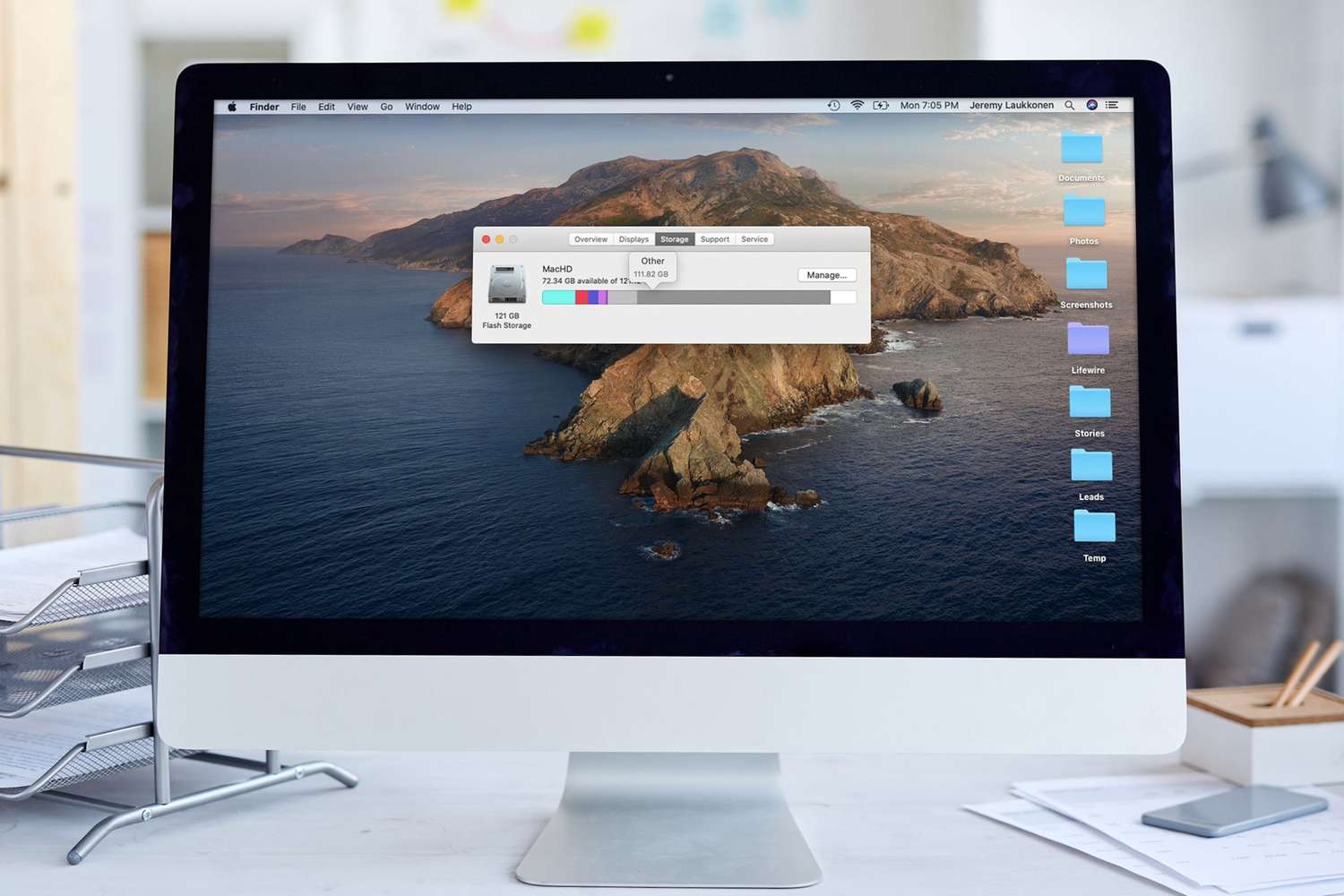
- Other storage contains categories of files stored on your computer.
- To get rid of Other storage on a Mac, press Command + F from the desktop.
- Choose This Mac > Kind > Other, and then search by file size or type.
This article explains what Other storage is on Mac and how you can clean it up.
What Is Other in Mac Storage?
Your Mac conveniently categorizes files into several broad containers for apps, documents, images, music, and more. These categories are easy to understand. For example, files included in the Image section are photo files like JPEGs and PNGs.
By including the Other category, Apple is able to simplify its storage report and make everything look nice and neat. The issue is that the Other category, also referred to as “other volumes in container,” depending on your version of macOS, literally contains every file type that doesn’t fall into any of the other categories.
Some of the most common files included in the Other section include:
- Documents: Word processor documents, proprietary image files like .psd, Adobe Acrobat files, and various other documents all fit into the Other category. Some of these, like proprietary image files, can take up a lot of space.
- System and temporary files: All of your macOS system files are lumped into this category, along with temporary files that are created by the system or downloaded and used in system updates. Starting with Catalina, most of these files are grouped into the self-explanatory System category.
- Cache files: When an app, like a web browser or macOS itself, creates a cache file, it gets grouped into the Other category.
- Archives: If a file or set of files is archived, like .zip and .dmg files, they are grouped in this category. Removing the files from the archive will cause them to show up in the appropriate categories.
- App plugins: If you download and install a plugin or extension for an app, like a browser plugin, it will be grouped into this category instead of the Apps category.
- And everything else that doesn’t fit neatly into the other categories.
How to Get Rid of ‘Other’ Storage on a Mac
Now that you know the sorts of files that get lumped into the Other category in your Mac storage, it should be clear that cleaning up that space isn’t as simple as flipping a switch.
You can target individual file types, though, with special attention paid to large and unneeded files, to free a lot of space.
Here’s how to free up some space on your Mac by deleting from the Other category:
-
Close any open windows, and return to your desktop.
-
Press Command + F.
-
Click This Mac if it isn’t already selected.
-
Click the first dropdown menu field and select Other.
-
Tick the boxes next to File Size and File Extension, then click OK.
-
Choose File extension from the first menu, and then enter a document type, like pdf, csv, pages, etc. You can also search for disk images and archives, like dmg and zip.
-
Examine the list of items. Delete anything you no longer need, or back up items you don’t expect to need in the future.
-
You can also search for files that are larger than a specified size to identify candidates for deletion. Do this by changing the first menu to File Size, and the second one to is greater than.
Press the + button on the right side of the window to add another search condition, allowing you to search by file type and size at the same time.
-
Continue this process for various file types until you have freed a satisfactory amount of space.
How to Clear Cache Files on a Mac
Cache files can take up a large chunk of your Other category, and they won’t show up when you search for old and unwanted files, as you learned to do in the previous section. To clear out cache files, you need to navigate to the location where they are stored and delete them.
Cache files are created all the time during the normal operation of macOS. As soon as you delete your cache files, you’ll immediately see new ones start to populate the once-empty space.
-
Open Finder and navigate to Go > Go To Folder.
-
Type ~/Library/Caches, and then press Return.
-
To prevent any possible issues, drag the Caches folder to your desktop temporarily before deleting anything. If you experience problems, you can simply drag it back and delete one thing at a time.
Hover the mouse cursor over the Caches path at the top of the window to find a small folder you can drag to the desktop to copy the contents.
-
Select everything in the Caches folder (the original, not your copy), and move it to the Trash.
-
All the items from your cache file will be moved into the trash, and you can close the window.
Removing App Extensions on a Mac
Most of the space occupied by the Other category is taken up by uncategorized files and cache files, which you have already learned to clean up. If you want to squeeze out a little more space, consider removing any application extensions that you no longer use.
You can free up a lot more space by uninstalling old apps you no longer use, but app data is appropriately held in the Apps category. Extensions and plug-ins, however, are small additions that are lumped into Other as they aren’t full apps.
If you use Safari, you can view and remove any Safari plugins you no longer need to free up some space. Other apps that use extensions and plug-ins have similar processes to allow you to remove the add-ons without removing the base app. For example, Chrome users can navigate to More > Extensions > Manage Extensions to remove an extension.
Thanks for letting us know!
Subscribe
Tell us why!
Other
Not enough details
Hard to understand
