


Screenshot by Lance Whitney/ZDNET
We’ve probably all bumped into boot-up problems when Windows fails to load properly. That’s when a recovery drive can come in handy. But how many of us take the time to set one up? Well, Windows itself offers a recovery feature that you may not even realize exists.
Known simply as Recovery Drive, this legacy tool lets you create a recovery environment to store on an external USB drive. If Windows ever has trouble launching, you’ll be able to boot up your PC with the recovery media. The tool works the same in both Windows 10 and 11.
Also: Why you need a data backup plan for your Mac or PC – before disaster strikes
There are a couple of conditions to keep in mind. Using Recovery Drive resets Windows back to its initial factory state. Specifically, the recovery stores all built-in Windows files, any updates installed at the time you set up the drive, and any customizations from the PC maker. Your own customizations, your personal files, and any apps you’ve installed are not included, so you’ll want to be sure you have separate backups of those items. I recommend Ed Bott’s step-by-step guide to protecting yourself from data-related catastrophes.
The Recovery Drive is similar to the Reset option in Windows. The difference here is that Reset can retain your personal files. However, you have to run Reset from within Windows, whereas the Recovery Drive can ride to the rescue if Windows isn’t inaccessible.
However, since the Recovery Drive removes your personal files and apps, you’ll want to use it as a last-ditch effort if you can’t access Windows through any other means. Here’s how it works.
To get started with Recovery Drive, connect an external USB stick or drive to your PC. Make sure the drive has at least 32GB of free space. I have a few external drives and several USB sticks that I use across my PCs, most of which provide ample space to store a full Windows recovery environment.
Show more
Screenshot by Lance Whitney/ZDNET
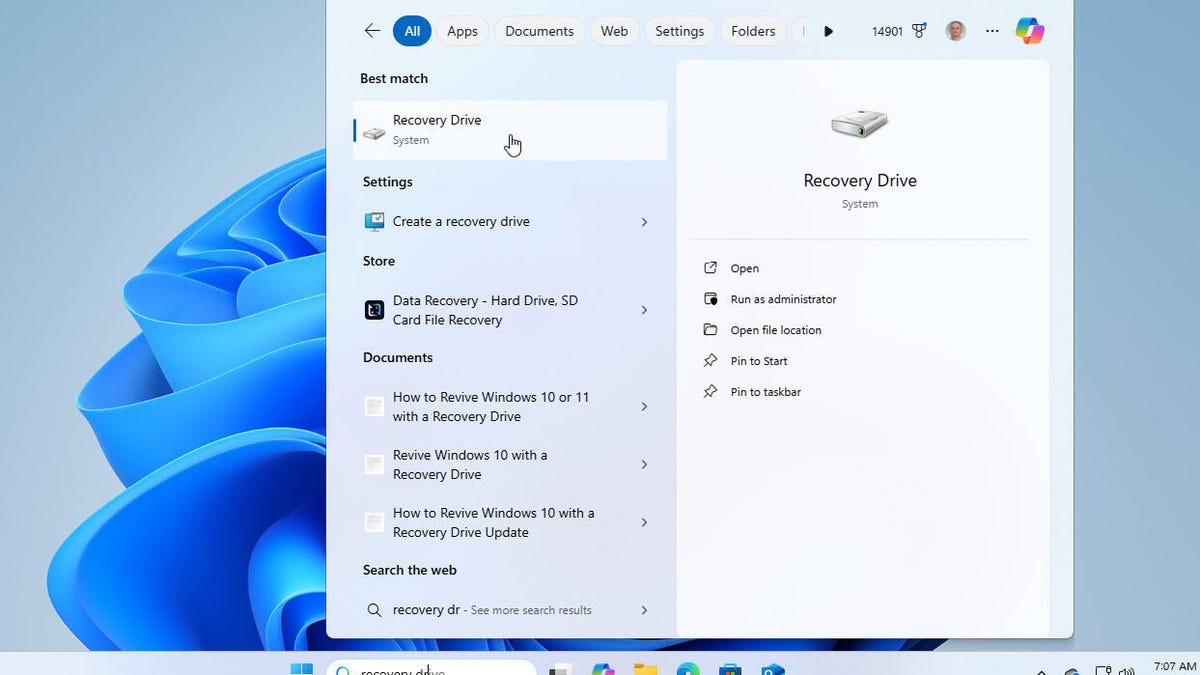
In Windows 10 or 11, start typing Recovery Drive in the search field or window and select Recovery Drive from the search results.
Show more
Screenshot by Lance Whitney/ZDNET
Also: Got a new PC? 5 apps to install first (and how they’ll improve your workflow)
At the next screen, check the box for “Back up system files to the recovery drive.” Click Next.
Show more
Screenshot by Lance Whitney/ZDNET
At the next screen, make sure the correct external drive or stick is selected and then click Next.
Show more
Screenshot by Lance Whitney/ZDNET
Also: Your Windows 11 PC has a secret emergency shutdown feature – here’s how to use it
The next screen reminds you that everything on the external drive will be deleted. Click Create to proceed. Now, step away for a long break or segue to another task as the process will take some time. After the long wait, you’ll be told that the recovery drive is ready. Click Finish.
Show more
Screenshot by Lance Whitney/ZDNET
Now let’s travel into the future at a time when Windows is exhibiting boot up problems and refuses to load properly. You have no other means of booting up or accessing the operating system. Then you remember your trusty recovery drive. Connect the USB drive or stick to your PC. Power up or reboot your computer and press the appropriate key for your model to load the boot menu. From there, select your external drive to boot off that device.
Show more
Screenshot by Lance Whitney/ZDNET
Also: A decade of Windows 10: Chaos, Cortana, and conspiracy theories that never panned out
After the recovery drive boots up your PC, you’ll be asked to choose your keyboard type. The next screen then offers you a few choices, such as recovering from a drive, using a device, or troubleshooting a problem. Select the option to recover from a drive. This will reinstall Windows from the recovery environment but remove your personal files and apps.
Show more
Screenshot by Lance Whitney/ZDNET
The next screen asks if you want to remove files or fully clean the drive. Choose the first option to just remove your files.
Show more
Screenshot by Lance Whitney/ZDNET
Also: The best external hard drives: Expert tested
The final screen here explains what will happen when the recovery environment is applied. Make sure you’re OK with the process and then click Recover. Your PC goes into recovery mode using the drive to reinstall Windows.
Show more
Screenshot by Lance Whitney/ZDNET
After your recovery environment is applied, you’ll be taken to the usual Windows setup screens. Go through each screen until you complete the process. After that’s done, you’ll be deposited at your recovered Windows environment where you can nose around to make sure everything is working as expected. If so, you’ll then have to restore your personal files and reinstall any apps you need.
Show more
Screenshot by Lance Whitney/ZDNET
Get the morning’s top stories in your inbox each day with our Tech Today newsletter.
