

Close Menu
TechurzTechurz
    What's Hot

    Asian AI startups launch Mythos-like models as Anthropic’s export ban drags on

    June 27, 2026

    Corgi, the buzzy Y Combinator-backed insurance tech startup, says it didn’t steal an open source product

    June 26, 2026

    OpenAI poaches Uber India chief to lead its biggest market outside the US

    June 26, 2026
    X (Twitter) Pinterest YouTube LinkedIn WhatsApp
    Tech Pulse
    • Asian AI startups launch Mythos-like models as Anthropic’s export ban drags on
    • Corgi, the buzzy Y Combinator-backed insurance tech startup, says it didn’t steal an open source product
    • OpenAI poaches Uber India chief to lead its biggest market outside the US
    • Early Bird pricing ends tonight for Founder Summit
    • Robotaxis drive miles just to get cleaned and charged; this new startup wants to fix that
    X (Twitter) Pinterest YouTube LinkedIn WhatsApp
    TechurzTechurz
    • Home
    • Tech Pulse
    • Future Tech
    • AI Systems
    • Cyber Reality
    • Disruption Lab
    • Signals
    TechurzTechurz
    Home - Apps - How to take full control of your Control Center in macOS Tahoe
    Apps

    How to take full control of your Control Center in macOS Tahoe

    TechurzBy TechurzJuly 31, 2025Updated:May 11, 2026No Comments3 Mins Read
    Share Facebook Twitter Pinterest LinkedIn Tumblr Reddit Telegram Email
    macOS Tahoe Control Center
    Share
    Facebook Twitter LinkedIn Pinterest Email


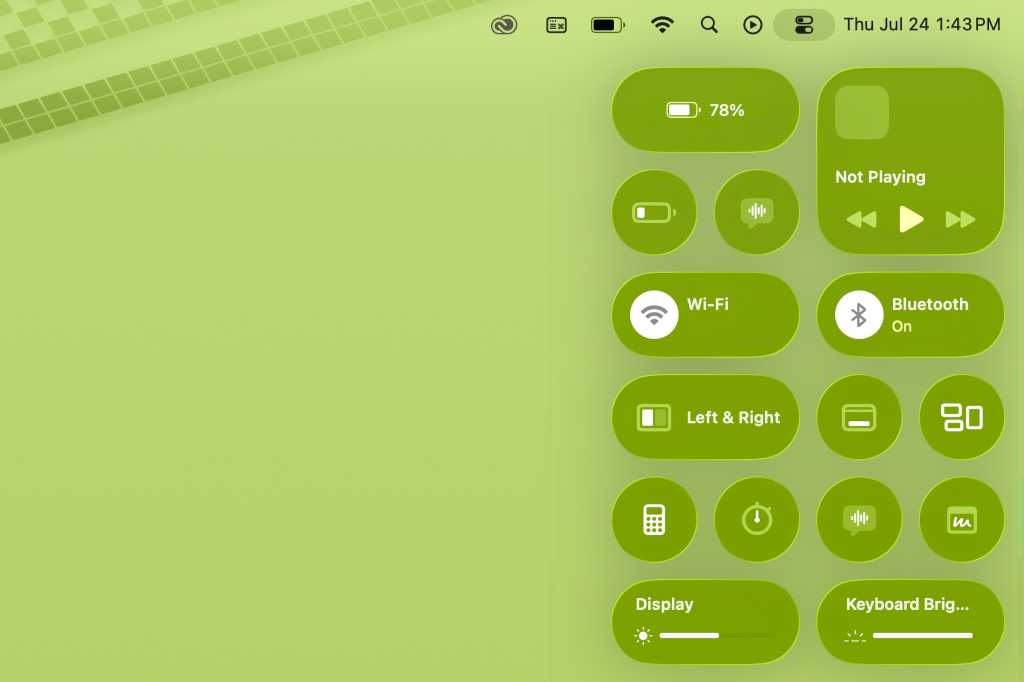
    With macOS Tahoe, Apple has made a drastic improvement to Control Center: you can now add, remove, and rearrange its controls. This represents a significant shift from previous versions, where certain controls were permanently located in Control Center, the options for adding controls were limited, and the order couldn’t be rearranged.

    In this article, we’ll look at how you can add controls, remove the ones you don’t want, and arrange them in a way that makes sense for you. You can check our macOS Tahoe superguide for more information and tutorials. Here’s how to customize Control Center in macOS Tahoe.

    • Tools required: macOS Tahoe

    1.

    Table of contents
    1 The Edit Controls button
    2 Remove controls from Control Center
    3 Add controls to Control Center
    4 Rearrange controls in Control Center

    The Edit Controls button

    Foundry

    Before macOS Tahoe, Control Center was managed in System Settings, and your options were basically to turn on or off controls. That’s no longer the case in Tahoe. Now, there is an Edit Controls button at the bottom of Control Center. This button is the key to accessing the tools to manage Control Center.

    Now that you know where the Control Center setting is, let’s look at how to remove, add, and rearrange Control Center.

    2.

    Remove controls from Control Center

    Foundry

    Apple includes a default set of controls that it believes are the most popular ones with users. There is a little bit of room for you to add controls, but you can remove the controls you never use and create more space. For example, I never use Focus (which uses two slots; we’ll talk about the slots in the “Rearrange controls” section), so I removed it.

    To remove a control, open Control Center and click the Edit Controls button. You’ll see “–” icons appear on the Control Center controls. This is just like removing apps from the Home screen in iOS; to remove a control, click on the control’s corresponding “–” icon.

    3.

    Add controls to Control Center

    Foundry

    To add a control, click Edit Controls. In the middle of the screen, you’ll see a Controls Gallery that looks a lot like the Widgets Gallery. Peruse the Gallery, and when you find a control you want, click it. A pop-up menu appears, asking if you want to add it to the Control Center or menu bar.  When you pick Control Center, it is added to an available spot.

    Some controls have additional options for the menu bar. For example, Now Playing can be added to Control Center or the menu bar with options to Always Show, Show When Active, or Never Show.

    The Controls Gallery offers only Apple controls. There isn’t an option to add controls from third-party developers or apps. Hopefully, that will change in a future update.

    4.

    Rearrange controls in Control Center

    Control Center’s layout grid contains 32 spots for controls.

    Foundry

    To move the location of a control, click and drag it to the desired location. It’s that simple.

    To dive a little deeper, let’s go over how the layout works. Control Center is made up of 32 spots in a rectangular grid. The controls occupy the spots in the grid, and how many spots the controls occupy depends on its design. Some controls take up only one spot, while others are as large as four spots, either as a square or horizontally.

    When arranging your controls, you can fit them together like a puzzle, but you are free to leave spots open if you’d like. You can rearrange them whenever you want.

    center Control full macOS Tahoe
    Share. Facebook Twitter Pinterest LinkedIn Tumblr Email
    Previous ArticleWhy the World’s Best CEOs Are Training Like Athletes
    Next Article Why I run with these bone-conduction headphones instead of Shokz (especially at its new price)
    Techurz
    • Website

    Related Posts

    Opinion

    Defense tech, AI, and fundraising take center stage at StrictlyVC Los Angeles

    June 4, 2026
    Opinion

    Khosla-backed robotics startup Genesis AI has gone full stack, demo shows

    May 6, 2026
    Opinion

    Stripe wants to turn your AI costs into a profit center

    March 3, 2026
    Add A Comment
    Latest Tech Pulse

    College social app Fizz expands into grocery delivery

    September 3, 20252,290

    SolarSquare in talks to raise up to $60M as India’s rooftop solar market draws major VC interest

    May 23, 202622

    Future of Digital Privacy and Security: 7 Truths Nobody Tells You

    May 25, 202619
    Stay In Touch
    • YouTube
    • WhatsApp
    • Twitter
    • Pinterest
    • LinkedIn

    Techurz helps readers stay ahead of digital change with clear, practical, future focused technology intelligence written today,searched tomorrow.

    X (Twitter) Pinterest YouTube LinkedIn WhatsApp
    Company
    • About Us
    • Contact Us
    • Our Authors / Editorial Team
    • Write For Us
    • Advertise
    Policy
    • Editorial Policy
    • Privacy Policy
    • Terms and Conditions
    • Affiliate Disclosure
    • Cookie Policy
    • Disclaimer
    • DMCA
    Explore
    • AI Systems
    • Cyber Reality
    • Future Tech
    • Disruption Lab
    • Signals
    • Tech Pulse
    • Sitemap

    Join the Techurz Brief

    The future does not arrive suddenly.
    Stay ahead with fast, sharp tech signals.

    Type above and press Enter to search. Press Esc to cancel.